Alpha Masks & Pro tools

Simple when you want it. Pro when you need it.

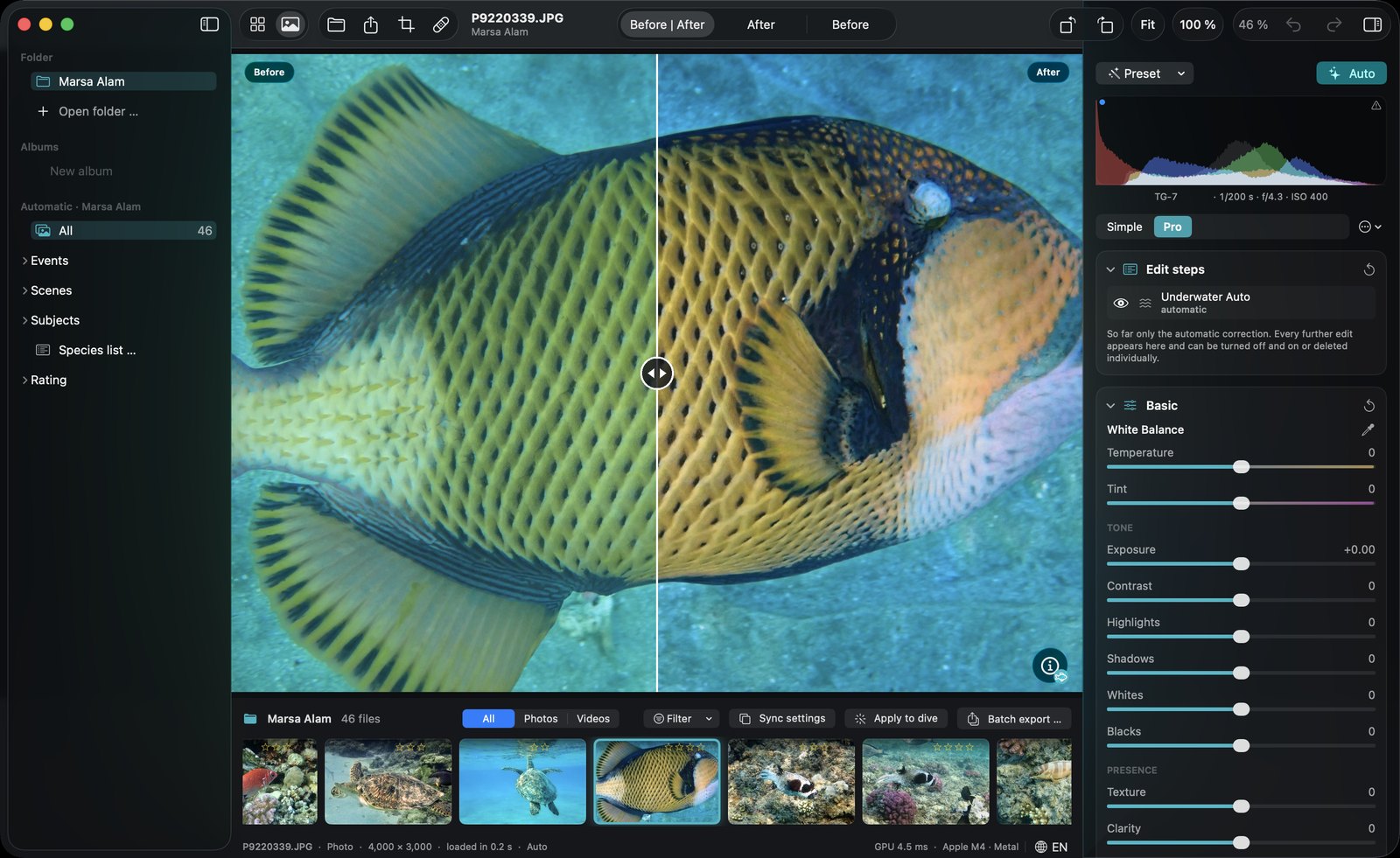
Start with a few clear cards — strength, brightness, white balance, colors. When you want more, switch to Pro: tone curve, color mixer, color grading, clarity, texture, dehaze, lens corrections and sharpening. Every step appears in a list you can switch on and off. Nothing is ever destructive: your original file is never touched.

DepthLight editor in Pro mode with tone curve, color mixer and detail panels.

How it works.

  1. Start in SimpleA few clear cards: strength, brightness, white balance, colors.
  2. Switch to ProTone curve, color mixer, color grading, masks, retouch and more.
  3. Arrange your toolsShow, hide and reorder sections, and build your own tabs.

Alpha Your workspace

Your workspace, your way.

Every photographer works differently. The settings on the right are organised in clear sections that fold away — open only what you need. And you can build your own tabs with exactly the tools you use for a certain kind of dive, in the order you like.

  • Simple for a quick edit, Pro for every tool
  • Sections fold in and out, each with its own reset
  • Own tabs, e.g. Saltwater (underwater, basic, color mixer), Macro (detail, masks, retouch) or Social (overlay, color grading, effects)
  • Show, hide and reorder every section — per tab
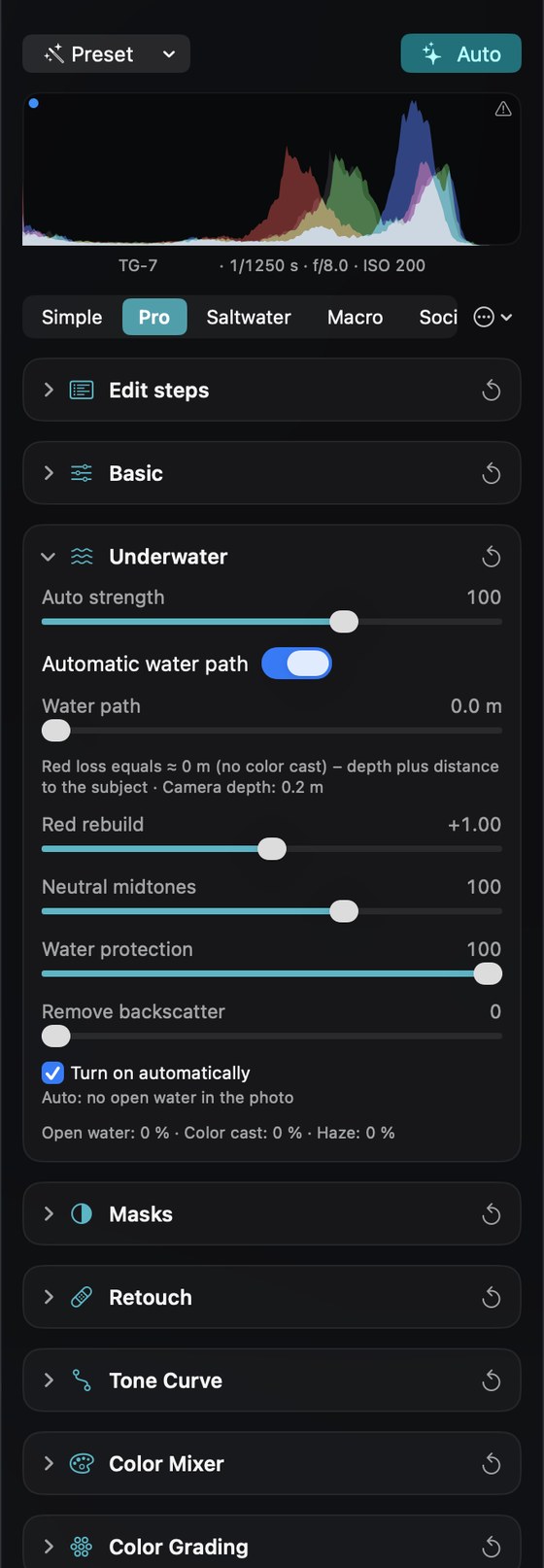
Pro view: all sections folded except Underwater.
Pro view, tidy: only what you need is open
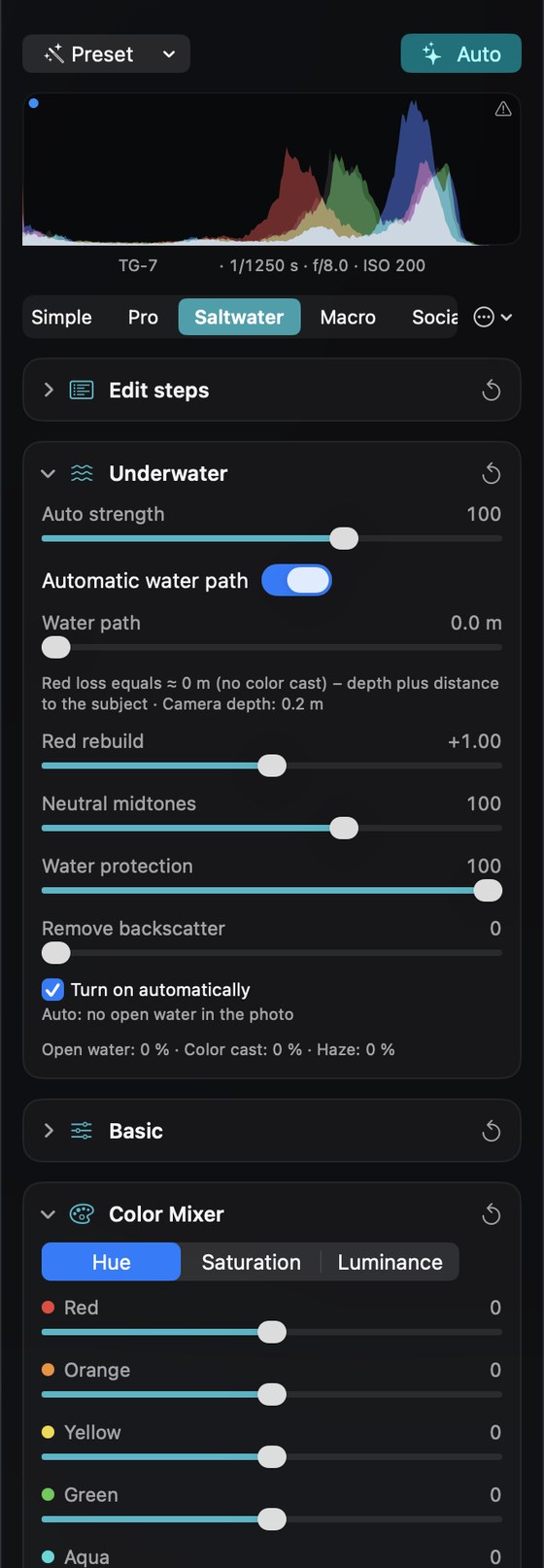
An own tab called Saltwater with the underwater section and the color mixer.
An own tab: “Saltwater”
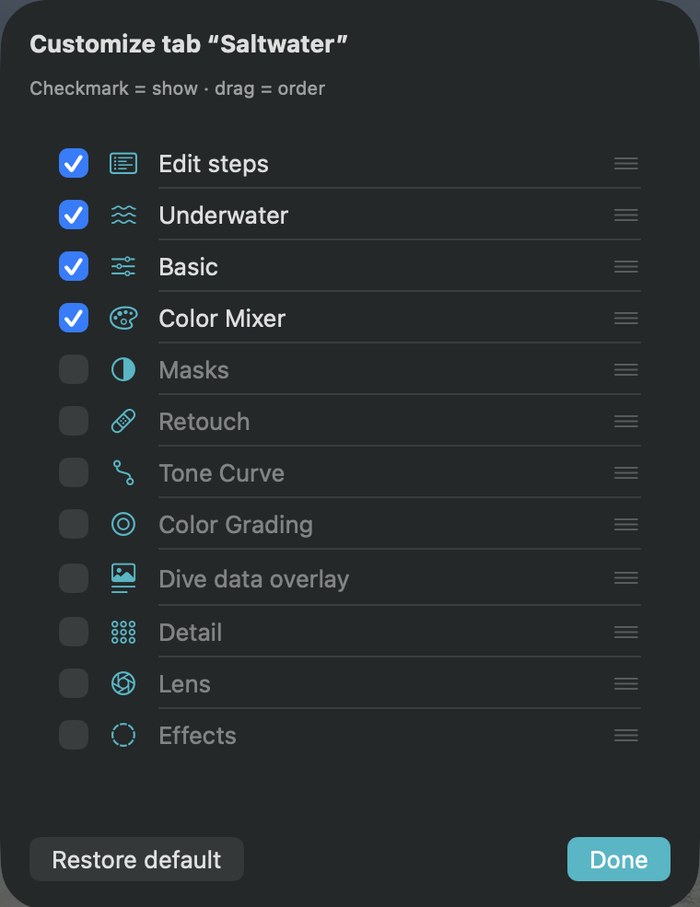
Customize the Saltwater tab: tick the sections to show, drag to reorder.
Tick what you need, drag to reorder

Alpha Masks & local edits

Masks that understand water.

Select the subject, the water, a diver, an animal or a face with one click — or paint, draw gradients and pick colors. Quick actions do the typical underwater jobs for you: calm the water, restore red on the subject, darken the background, blur it without halos.

  • 12 mask types, combinable (add, subtract, intersect)
  • 11 underwater quick actions
  • Backscatter removal that only touches open water
  • Smart Point: one click, DepthLight selects the similar area around it
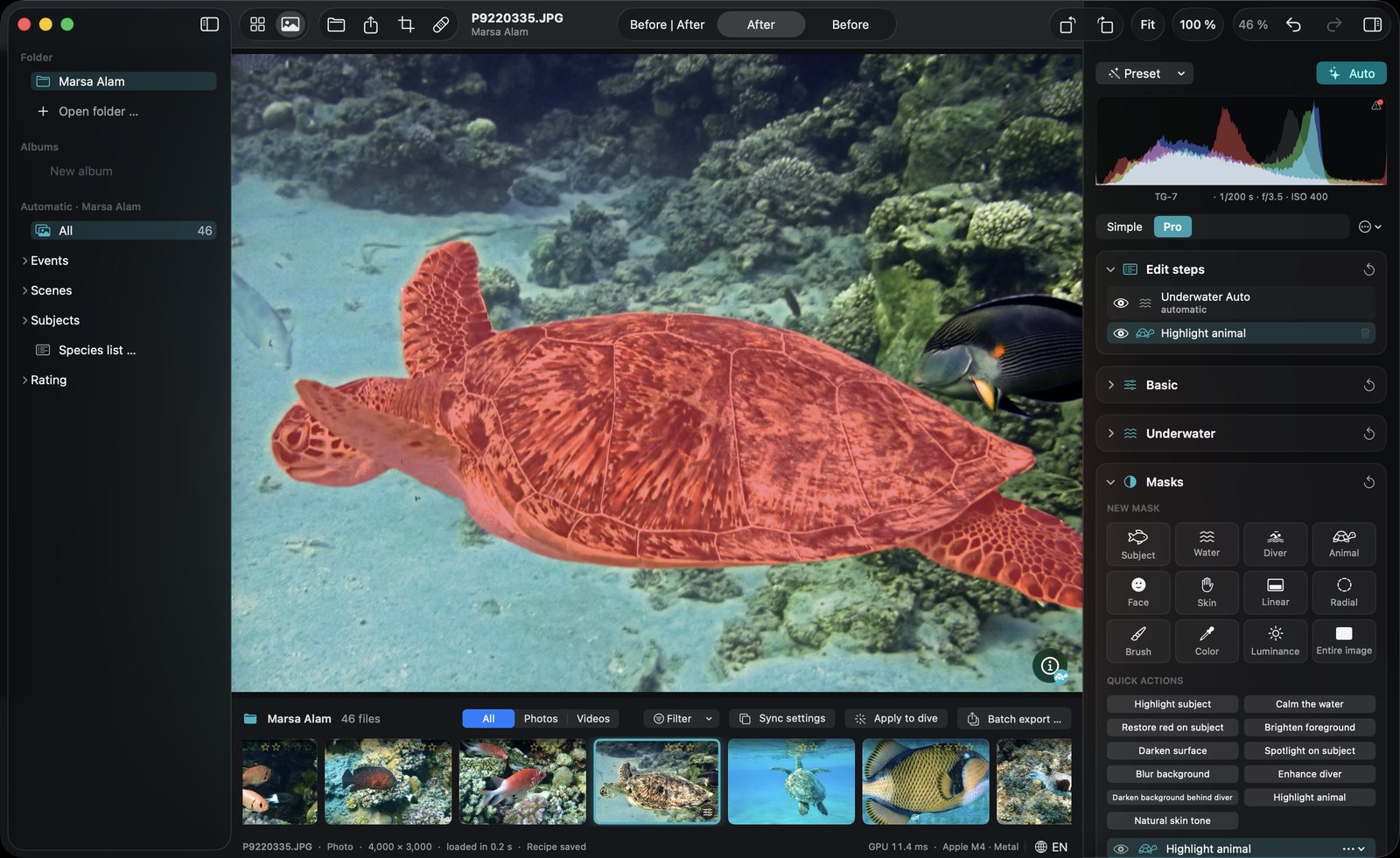
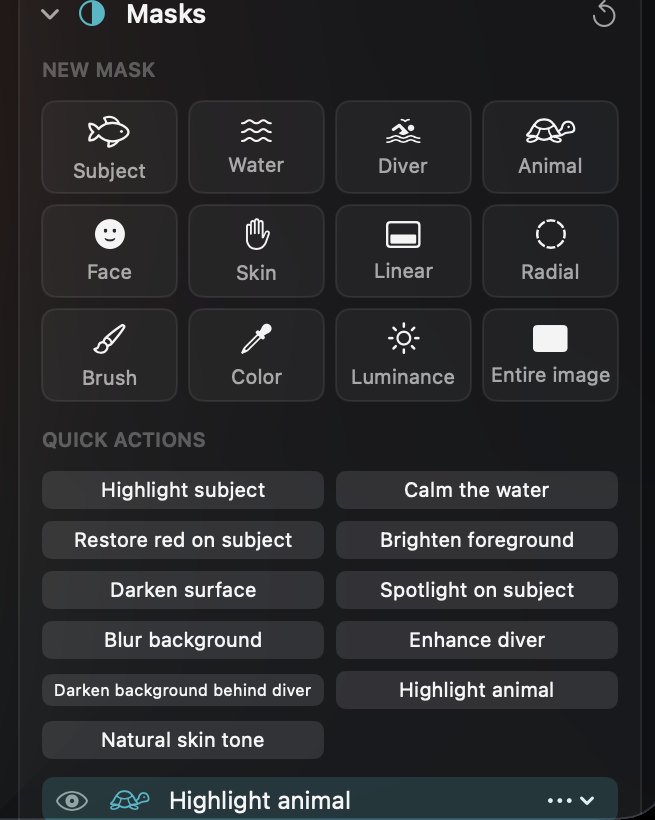
DepthLight editor with a green sea turtle selected by the Animal mask (shown in red) and the Masks panel open. Close-up of the Masks panel: tiles for Subject, Water, Diver, Animal, Face, Skin, Linear, Radial, Brush, Color, Luminance and Entire image, plus quick actions.

Keep control.

Color tipping warningPress K: over-corrected colors show as magenta stripes, when blue turns lime, green turns turquoise or yellow turns green.
Gray card for a whole seriesOne click with the eyedropper, and the white balance goes to every photo of the dive at a similar depth.
Histogram and clipping warningFor highlights and shadows, with a before/after split view.
Details for pros

Editing tools

  • White balance Temperature, tint and an eyedropper that measures the corrected result.
  • Tone Exposure, contrast, highlights, shadows, whites, blacks.
  • Presence Texture, clarity, dehaze, vibrance, saturation.
  • Tone curve RGB plus separate red, green and blue curves, with presets.
  • Color mixer Hue, saturation and luminance for 8 color ranges — e.g. shift aqua towards blue for deep blue water.
  • Color grading Shadows, midtones and highlights wheels with blending and balance.
  • Detail Sharpening, noise reduction, color noise reduction.
  • Lens Chromatic aberration and defringe — for the color fringes flat ports and wide-angle lenses produce.
  • Effects Vignette and film grain.
  • Histogram With clipping warning for highlights and shadows.
  • Color tipping warning Shows over-corrected colors as magenta stripes (key K): blue turning lime, green turning turquoise, yellow turning green.
  • Denoise network Own neural network for high-ISO underwater shots, on your Mac — second training round: cleaner results with the same fine detail.

Masks & local adjustments

  • 12 mask types Subject, Water / background, Diver / person, Animal, Face, Skin, Linear gradient, Radial gradient, Brush, Color range, Luminance range, Entire image.
  • 11 quick actions Highlight subject, Calm the water, Restore red on subject, Brighten foreground, Darken surface, Spotlight on subject, Blur background, Enhance diver, Darken background behind diver, Highlight animal, Natural skin tone.
  • Combine Build masks from several parts — add, subtract or intersect, each invertible.
  • Brush Paint or erase with size, feather and flow.
  • Gradients Move, resize and rotate directly in the image.
  • Per-mask adjustments Exposure, contrast, highlights, shadows, whites, blacks, temperature, tint, restore red, saturation, clarity, dehaze, sharpness and blur.
  • Blur without halos Background blur that keeps clean edges around the subject.
  • Protect subject Limit any mask to the background with one switch; show any mask in red.

Retouch, crop & geometry

  • Heal & clone Remove spots: heal blends texture into the surroundings, clone copies 1:1. The source is chosen automatically and can be moved.
  • Crop Original, free, 1:1, 4:5, 3:2, 4:3, 16:9 and 9:16, with straighten.
  • Guides Thirds, golden ratio, golden spiral, diagonals, grid.
  • Rotate & flip Left, right, horizontal, vertical.

Workflow

  • Non-destructive Originals are never changed; edits are stored as a small file next to the photo.
  • Undo & redo For every step.
  • Before / after Split view, after, before — one key to switch.
  • Keyboard first Shortcuts for ratings, crop, retouch, masks, grid, zoom and more.
  • Apple Photos extension Use Auto and the main sliders right inside Photos — re-editable later.
  • Your own layout Pro mode panels can be shown, hidden and reordered, and you can build your own tabs with exactly the tools you use.
  • Languages English and German, switchable at any time.

This feature’s history

All changes →