New
Smart Point
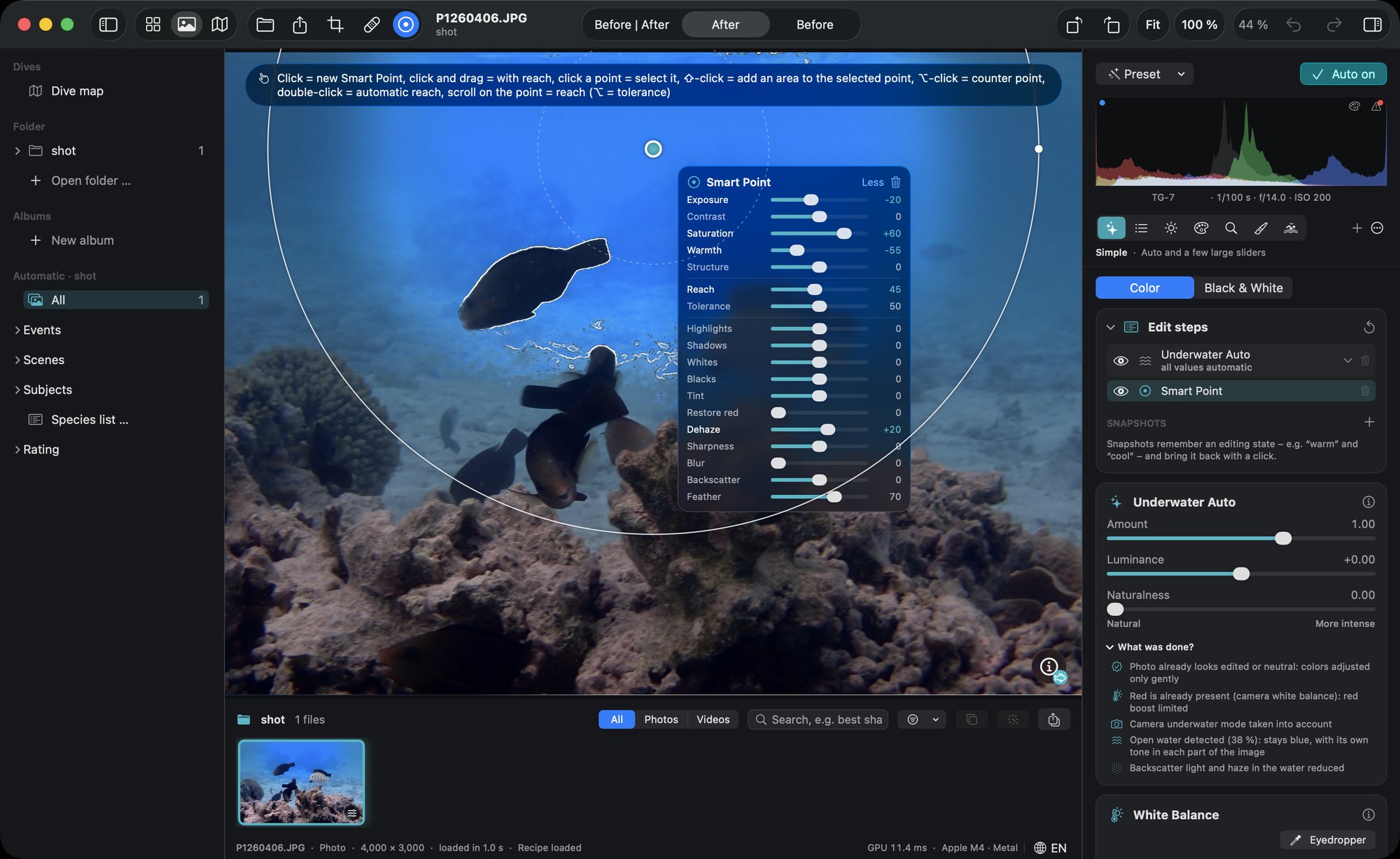
Click where it should change. DepthLight finds the rest.
A Smart Point is a local correction you set with one click. DepthLight measures color, brightness and – if known – distance at that spot and selects everything similar around it: the open water, a dark subject, the yellow of a fish. You adjust only that area. No brush, no painted mask, no hard edge.
Hazy turquoise becomes deep blue.
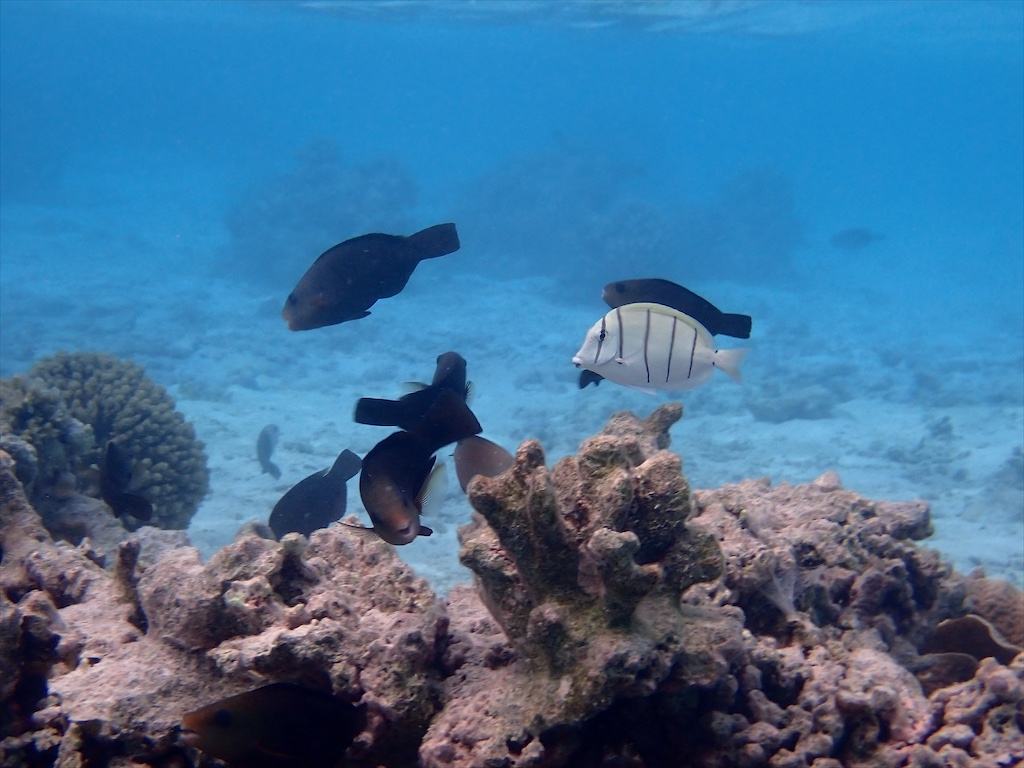
One click into the open water. The water turns clear and blue – the fish and the pink reef in front of it are not touched.
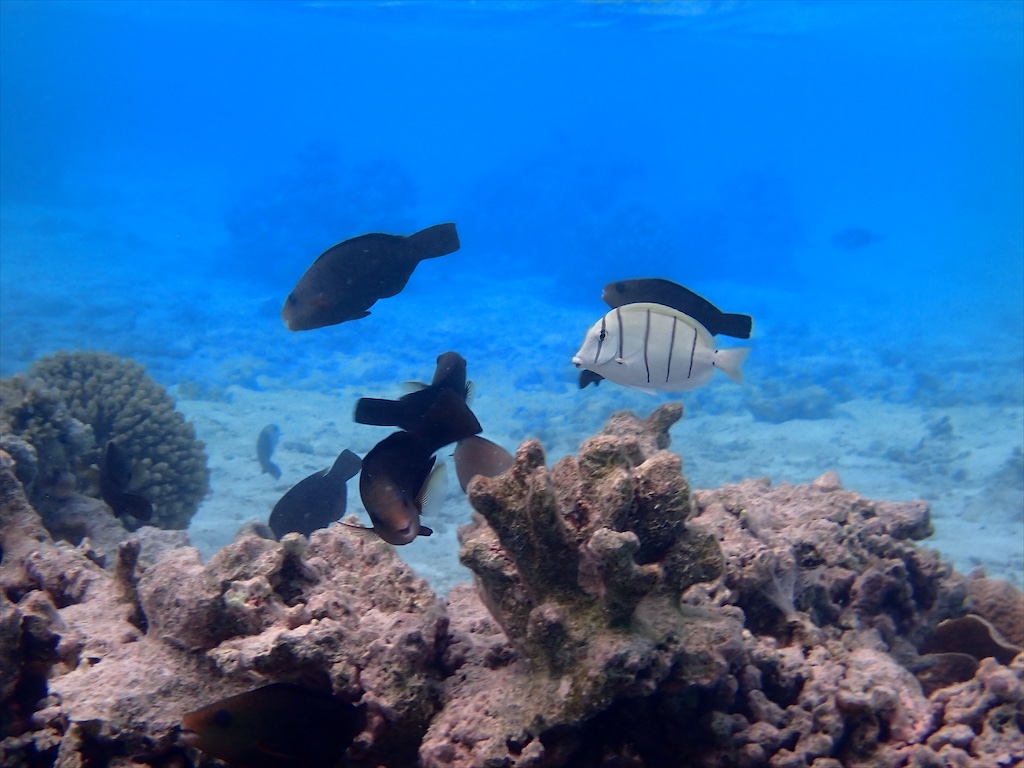
 Without
Smart Point
Without
Smart Point
Why not just a brush or a gradient?
Underwater, the area you want to change rarely has a straight edge. Water flows around fins, between corals and behind every fish.
Brush
Precise, but you paint every edge by hand. Around fins and coral branches that takes minutes per photo.
Gradient
Fast, but it hits everything in its path – including the subject that swims through it.
Smart Point
One click. It follows the similar colors and stops at the subject by itself. You can still move, widen or narrow it at any time.
Two clicks, two corrections.
Every click is its own Smart Point with its own sliders. Here the first point makes the water bluer, the second one gives the Picasso triggerfish more light and color. Neither touches the other.
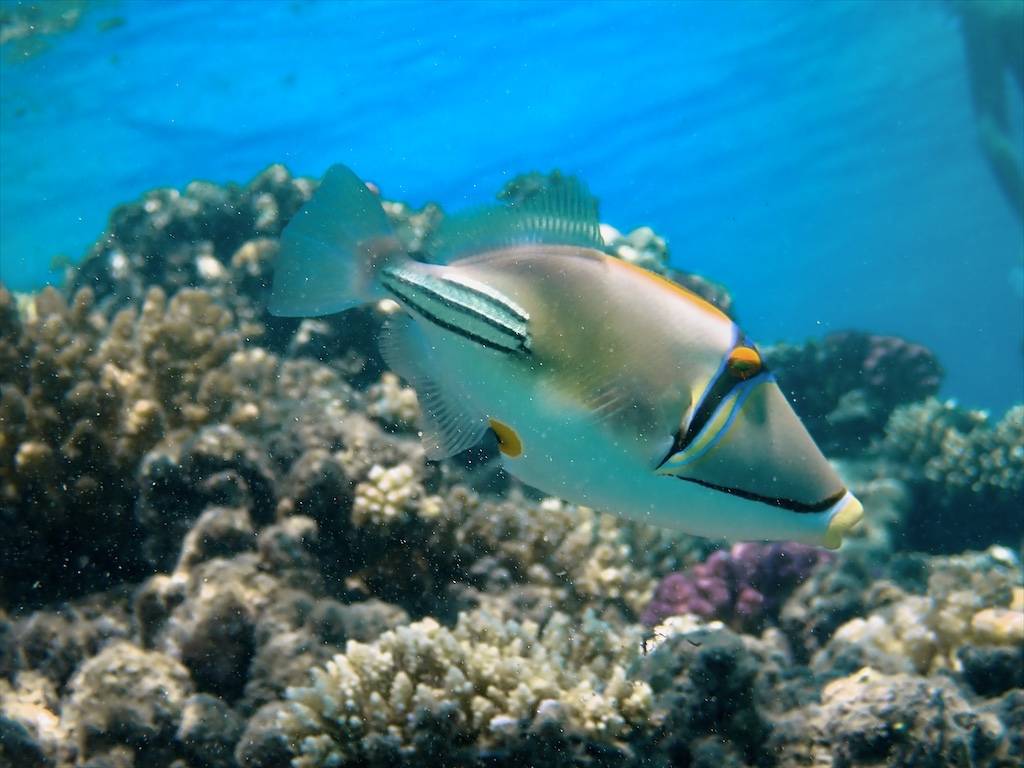
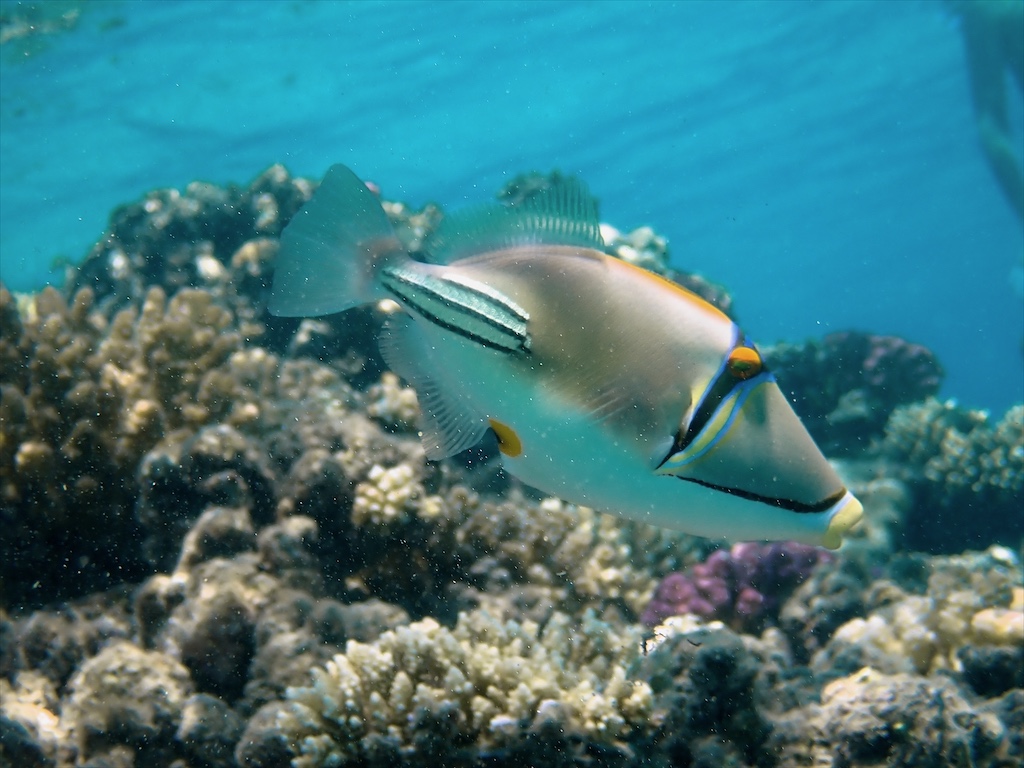 Without
2 Smart Points
Without
2 Smart Points
What you can do with it.
A Smart Point carries all local sliders: exposure, contrast, highlights, shadows, warmth, tint, saturation, structure, dehaze and more.
Bluer water
Click the open water and cool it down – the subject keeps its colors.
Brighten the subject
A dark fish or a shaded turtle gets light, the background stays calm.
Make colors glow
The yellow of a butterflyfish, the purple of a coral – more saturation exactly there.
Warm up the sand
Take the blue-green cast out of the sand without touching the water above it.
Protect with a counter point
⌥-click on what should stay – for example bluish fins in blue water.
Extend an area
⇧-click adds another area to the selected point – same sliders, e.g. water left and right of a subject.
Deep blue, the coral stays.
One click into the water above the reef. The whole blue gets deeper and clearer – the red-brown coral in front of it keeps every shade, right up to its edges.
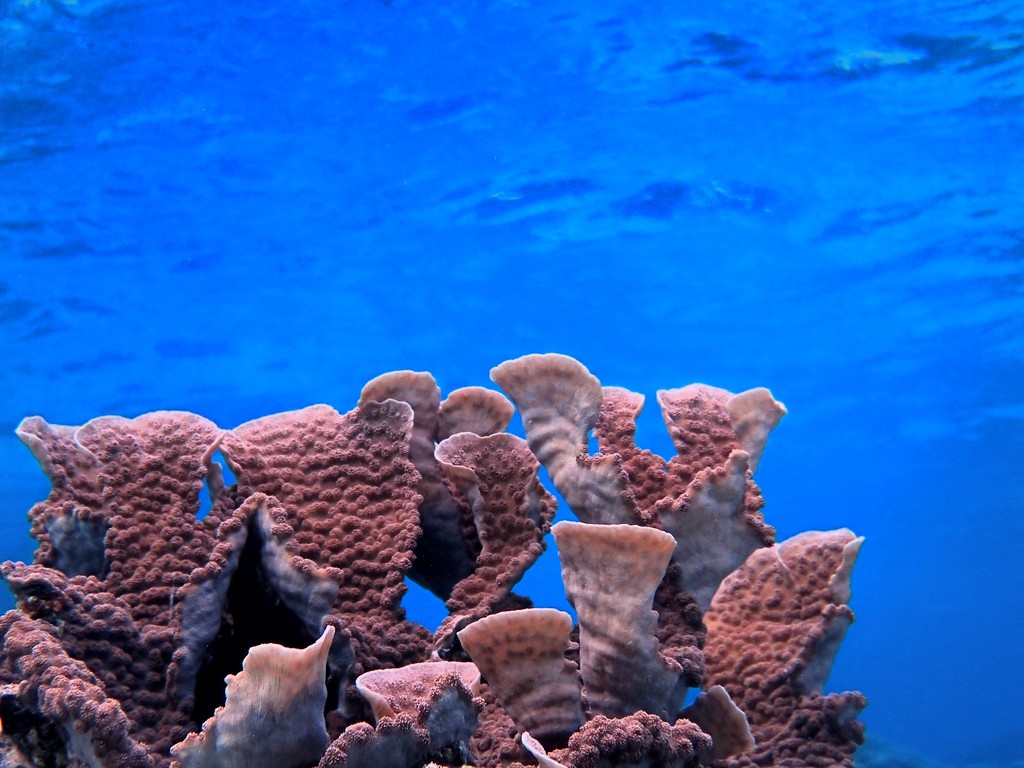
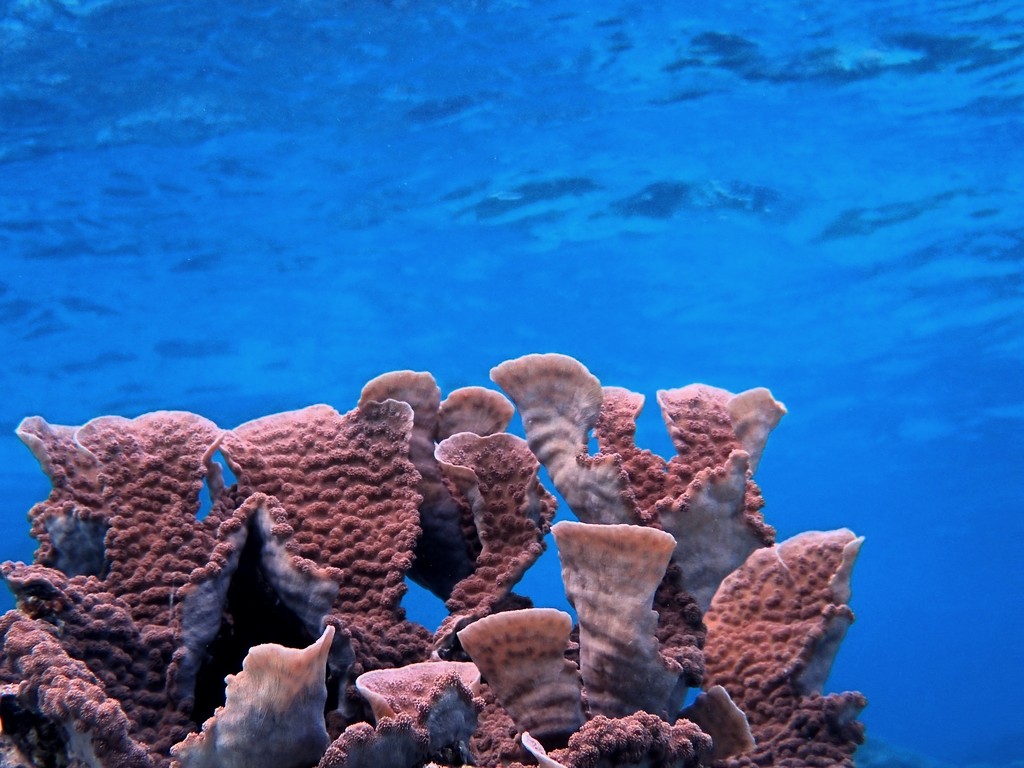 Without
Smart Point
Without
Smart Point
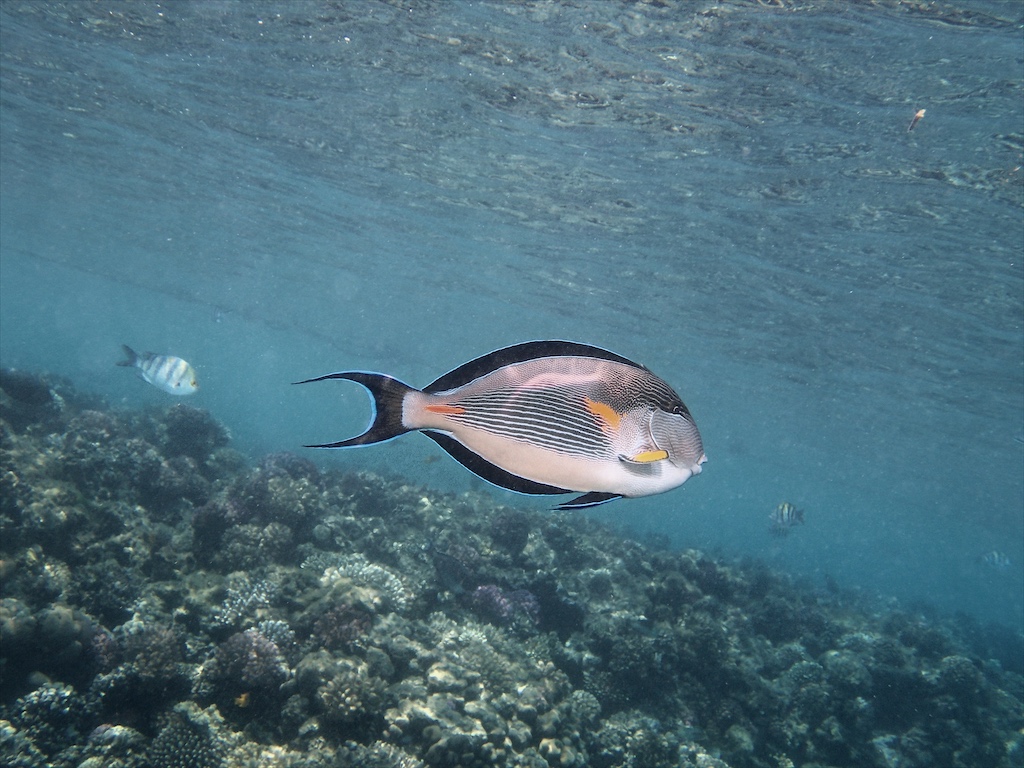
Even fine fin edges stay.
The surgeonfish has blue edges on its fins – the same color as the water. The Smart Point still leaves them alone, because it also compares brightness and the shape of the area around the click.
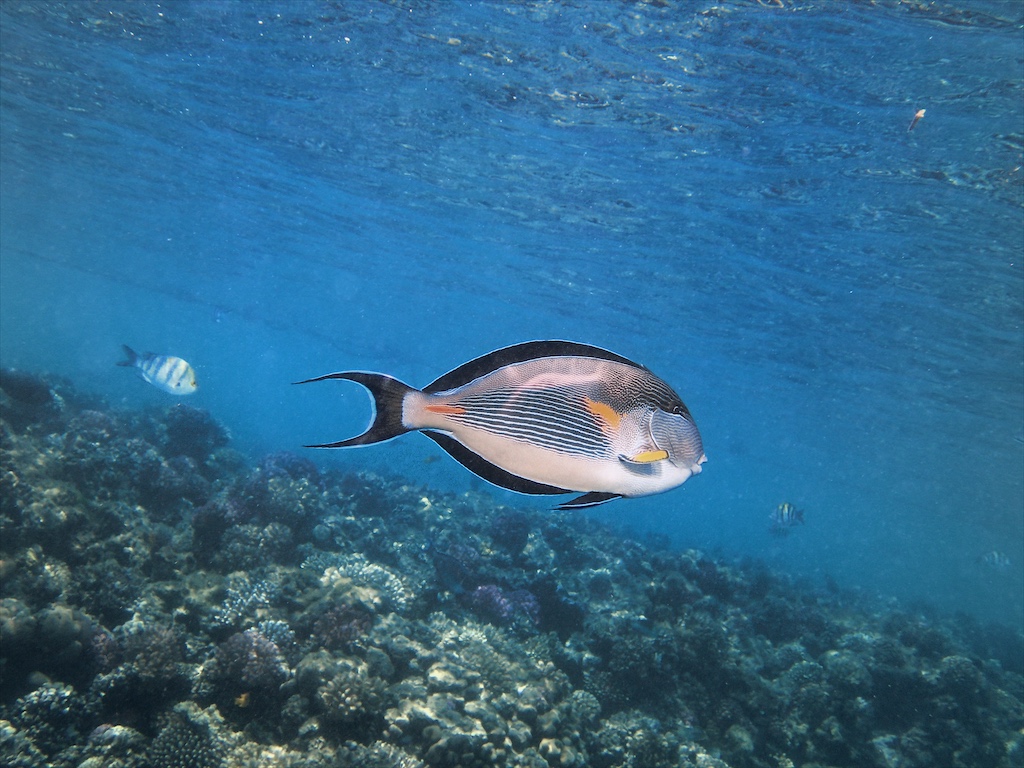
 Without
Smart Point
Without
Smart Point
How it works in the app.
Four steps, all with the mouse or trackpad.
1 · Start
Press S or the Smart Point button in the toolbar.
2 · Click
Click into the photo. Click and drag sets the reach in the same gesture. A fine contour shows exactly what the point picks up.
3 · Adjust
A short bar appears right at the point: exposure, contrast, saturation, warmth, structure. More opens all local sliders.
4 · Refine
Drag the point to move it, scroll on it for the reach, ⌥ + scroll for the tolerance, double-click for an automatic reach. Esc ends Smart Point, ⌫ deletes the selected point.
Details for pros
- Every click is its own point Each Smart Point has its own sliders and appears as its own entry in the mask list. Click a handle to select it.
- Depth as a fourth similarity When DepthLight knows the distances in the photo, a point also compares depth: the water behind the subject changes, a bluish fin in front does not.
- Soft edges, no halos The selection follows the edges in the photo and fades out softly – no painted border, no glow around the subject.
- Works with RAW and JPEG On top of the automatic correction or your own edit. The original file is never changed.
- Every step can be undone Click, drag and every slider move are single steps for ⌘Z. Preview and export show exactly the same.
- Selects by color, not by subject If part of the subject has the same color as the clicked area, it is picked up too. Then lower the tolerance or set a counter point.
All photos: Jürgen Heiss – rendered with DepthLight. “Without” = the same automatic correction without the Smart Point.